
Grade Option
Some courses are Graded Only or Pass/No Pass Only. Other courses have an optional grade mode which allows the student to select Graded or Pass/No Pass. Grade optional courses allow you to change your grading option in the Registration Dashboard through the deadline noted on the academic calendar.
During the summer term, you can request a change by submitting the Summer Grade Option Change Request.
Summer Grade Option Change Request
During fall, winter, and spring terms you have control of changing the grade option, Graded or Pass/No Pass, until 5:00 p.m. on the Friday before finals week.
To change the grade mode yourself:
- Log in to MyUO.
- Select the “Academics” tab.
- Select the “Register for Classes” card.
- In the “What would you like to do?” area, select “Registration and Changes.”
- Select the term from the drop-down menu in “Terms Open for Registration,” click the “Continue” button.
- In the “Register for Classes” area, click the “Schedule and Options” tab.
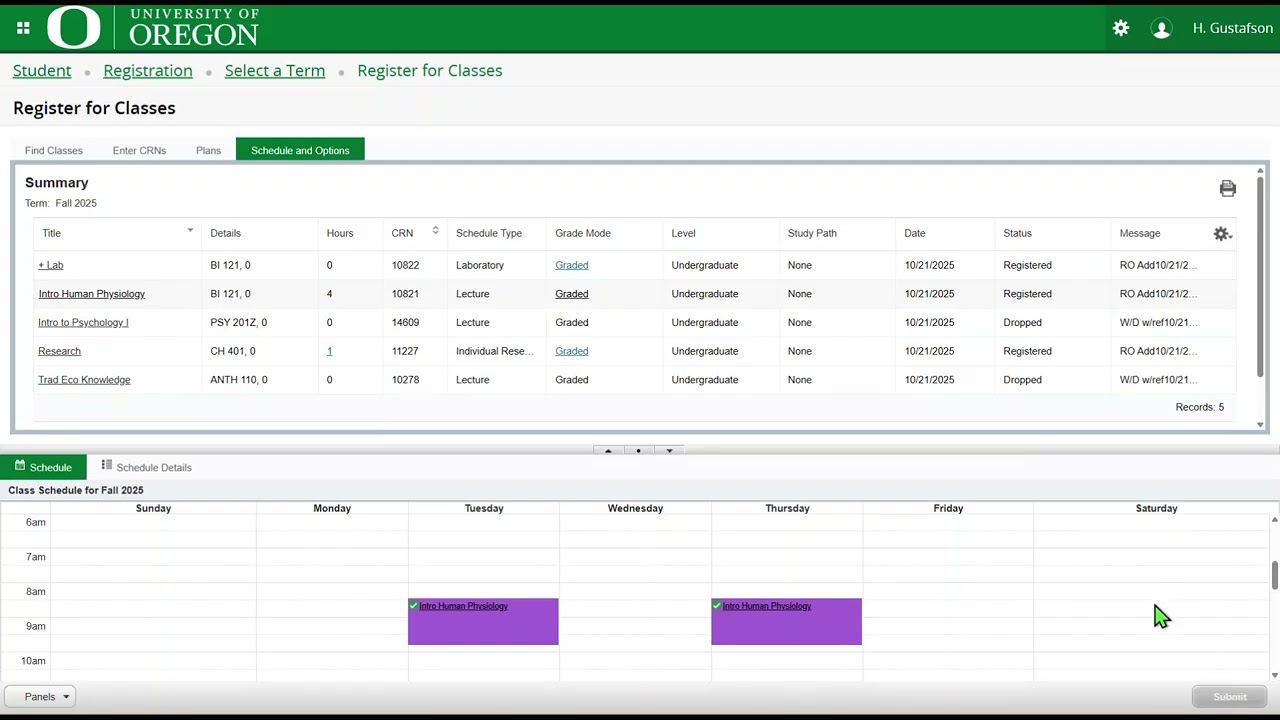
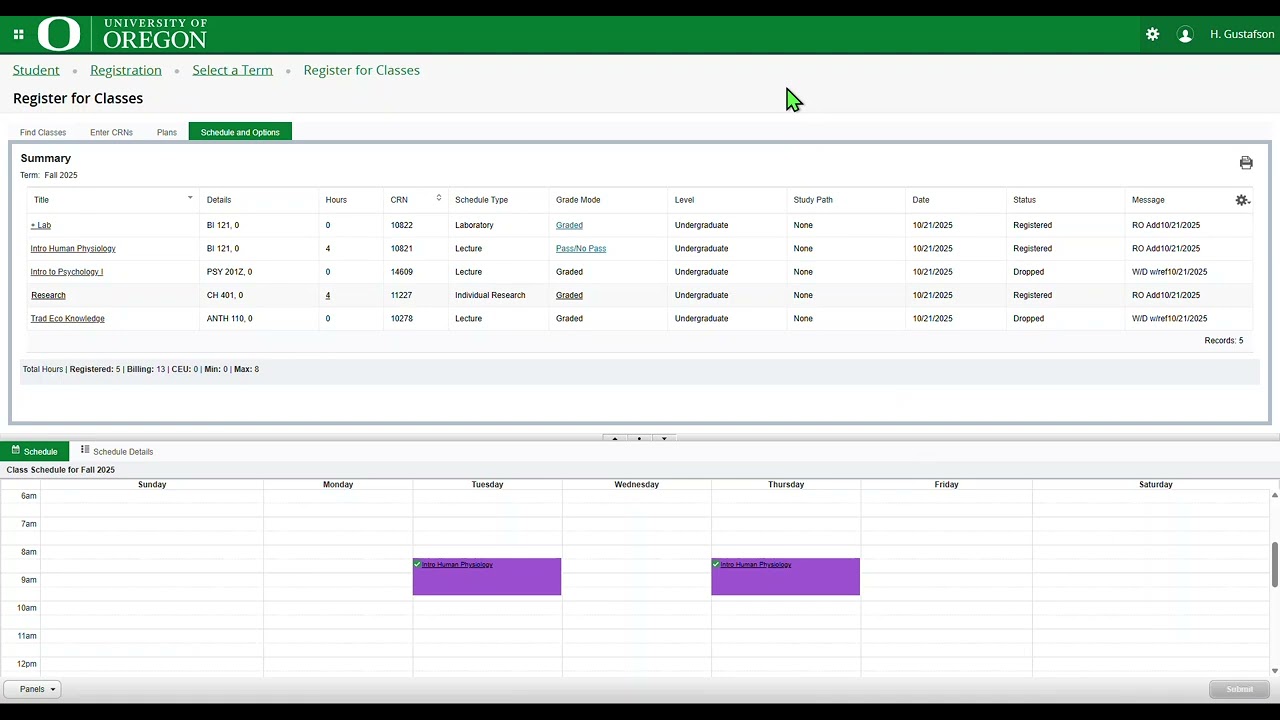
- In the summary of classes for the term, in the “Grade Mode” column, if the grade mode listed is linked, or underlined, you have the option to choose a different grade mode from the drop-down menu.
- If the course has both a lecture and lab, change the grade mode on the row with the title of the course.
- After making your changes, click ”Submit”.
- The “Save Successful” message confirms the changes were applied.
Variable Credits
Most courses are offered for a fixed, not variable, number of credits. Courses that are most likely to have variable credits include Thesis, Reading, Internship, and Dissertation. If you want to change the credits in a variable credit course, you will need to do that in the Registration Dashboard before the deadline on the academic calendar.
Follow these steps to change variable credits:
- Log in to MyUO.
- Select the “Academics” tab.
- Select the “Register for Classes” card.
- In the “What would you like to do?” area, select “Registration and Changes.”
- Select the term from the drop-down menu in “Terms Open for Registration”, click the “Continue” button.
- In the “Register for Classes” area, click the “Schedule and Options” tab.
- In the summary of classes for the term, in the Hours column, if the number of hours is linked, or underlined, the credits are variable and can be adjusted.
- Click the number in the Hours column; the range of credit is shared.
- Adjust the number of credit hours and click the “Submit” button.
- The “Save Successful” message confirms the changes were applied.
Petition for an Exemption
- The Credit Change Petition can be used to request an exception to a faculty-established policy and academic deadline.
- Students are required to provide evidence of compelling circumstances which would warrant approval.
- Present all information clearly and concisely.
Petition Due Dates
- Grade option changes: The deadline for a student to change their grade option is 5:00 p.m. on the Friday before finals week during fall, winter, and spring term. During summer term the grade change form must be submitted no later than 5 p.m. on the day before the last day of the summer class.
- Want to pursue a change after the deadline? See an advisor to request a Grade Option Change petition for the Scholastic review committee.
- Variable credit changes: Completed petitions should be received no later than one term after the course is completed.