
Overview
These instructions provide individual users information about creating and managing profiles.
Login
To log into the site, please click the Log in menu link.
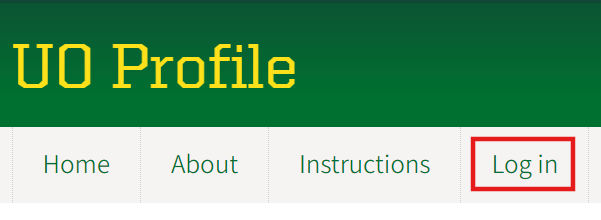
UO Login
Anyone with a valid DuckID can log into the site using the link Login with DuckID.
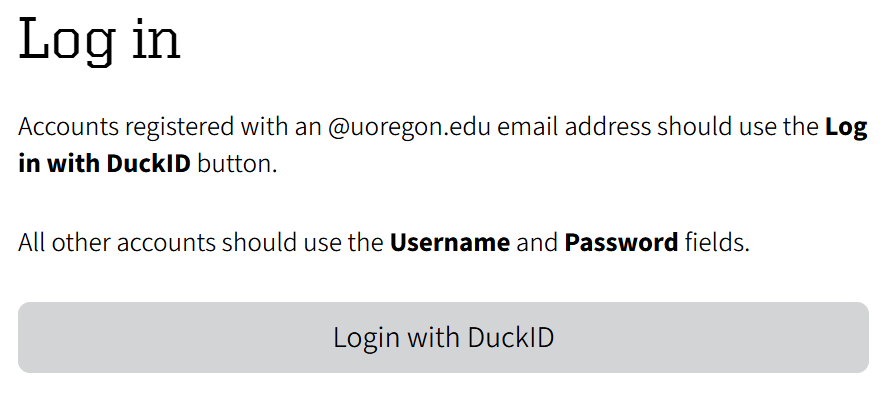
Non-UO Login
If you don't have a DuckID but need to create a profile, please contact the department for which you work or collaborate and request a local account. Once your account has been created you will receive a local account username and password with which you may access the site.
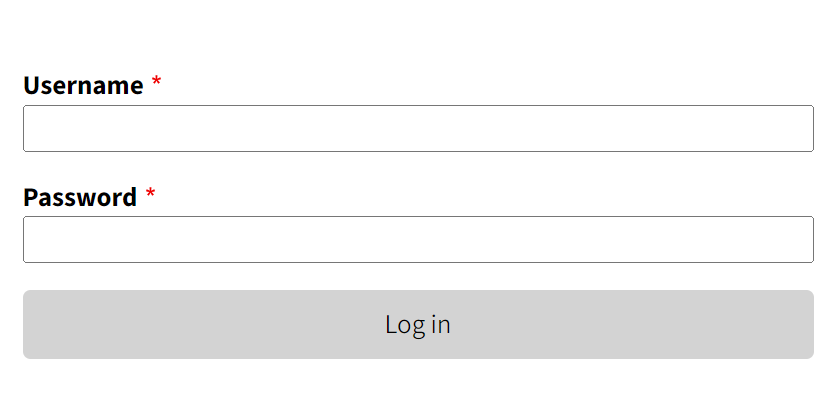
Profiles
View Profile
To view your profile or another profile as an anonymous user, please add the DuckID (or local account username) to the end of the URL, eg. https://profile.uoregon.edu/USERNAME. You can search for a user by name or DuckID using the Name field at the top of the home page. To refine your search, click the CLICK HERE to show more filters link.
Edit Your Profile
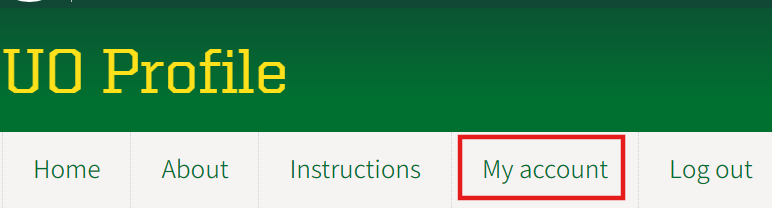
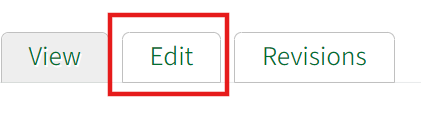
To edit your own profile, click the My account link after you log in. Then click the Edit tab to modify the information included in your profile.
- You can add information or make changes to most of the fields on your profile. Note that colleges and departments may not include every field on their website; contact your Profile Manager if you have questions about what is included.
- The Phone and Office fields have "overwrite" replicas. The values of these fields are synced with the UO Directory periodically. If you want your profile to show a different value for either of these fields, enter a value in the field labeled "overwrite" (e.g. Phone Overwrite). The public view of your profile will display the values entered into these "overwrite" fields. To change the value of either of these fields in the UO Directory, please contact Directory Services to request a change.
- While the Office Hours field is useful for posting hours and locations for standing office hours, it only allows plain text. If you would like to post a link to schedule a meeting or connect to a personal meeting room, use the Meeting Links field. For example, paste the link to your Zoom personal meeting room in the URL field and type "Meet via Zoom" in the Link text field to generate a meeting link on your profile.
- You can add additional profile sections (Research Interests, Publications, etc.) by clicking the Add Profile Section button.
- Remember to click Save at the bottom of the page once you have completed your changes!
Users
Best practices for Profile Users
- Check annually for information accuracy.
- Click on every link in the profile to ensure it is not a broken link.
- Update your Department if you change positions.
- Maintain site accessibility
- Use a Word document instead of a PDF for your CV and other documents.
- Clean up styles copied/pasted from Word.
Add User
Users with a valid DuckID
Faculty/Staff/Student Employees
- The simplest way to add a user with a valid DuckID is to direct them to the UO Profile site and have them log in through "Login with DuckID". This will create their account automatically so that they can start updating their profile.
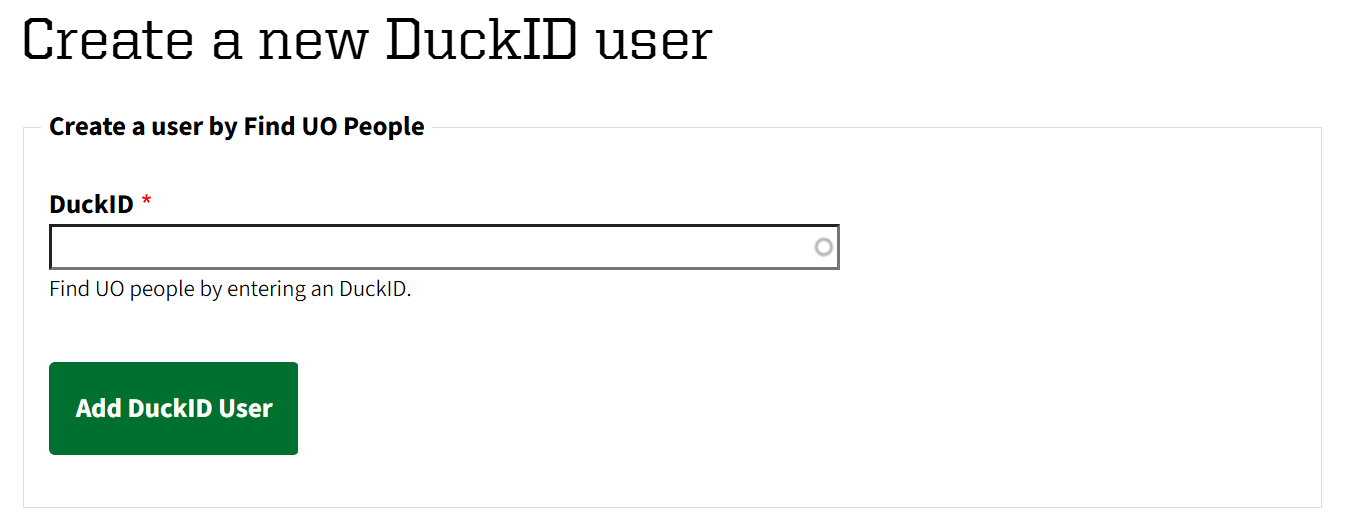
- If the user is unable to log in for any reason, Profile Managers can add the user via UO Find People.
Students
Student data is protected by UO privacy policies. Students at the university can add a profile using one of the following options, ordered from easiest to hardest.
- Log into the UO Profile site with their own DuckID through "Login with DuckID".
- Opt-in to display in the UO directory by following the instructions below.
- Log into DuckWeb: https://duckweb.uoregon.edu/ and navigate to Personal Information > Personal Information Application.
- Scroll to the bottom of the page and click Other > Student Directory Profile.
- In the pop-up dialog enable the Display in Directory checkbox for Name and Email, then click Update.
- A Profile Manager can then add the student using UO Find People.
- If the above options don't work for the student, please submit a ticket via the service portal: UO Profile Support Request
When the user does not have a valid DuckID or is an external user
Please follow the instruction in the Non-UO Login section above.
Faculty Profile Picture Requirements
To ensure consistency and professionalism across all UO faculty profiles, all faculty and staff members are required to adhere to the UO Communications Professional Portraits Standards.
Profile Picture Requirements
Your profile picture must meet the following criteria.
- Maximum dimensions: 800 x 600 pixels, with cropping that ensures the composition is consistent with all of the directory photos.
- Maximum file size: 2MB
- A profile picture must be a portrait of the staff member exclusively, ideally in UO primary colors or branded attire.
- The following additional guidelines should be adhered to.
- NO marks or logos of competing brands or other universities.
- NO language, slogans, or graphics that could be considered offensive, discriminatory, or inappropriate.
- NO images, symbols, or props associated with divisive or controversial topics, movements, or hate speech.
- NO visible political symbols, statements, or clothing that may signal political allegiance.
- NO excessively revealing clothing for a professional setting.
If your profile picture does not meet the above criteria, administrators will leave the space empty or replace it with an approved university or department avatar image.
Cropping the Profile Picture
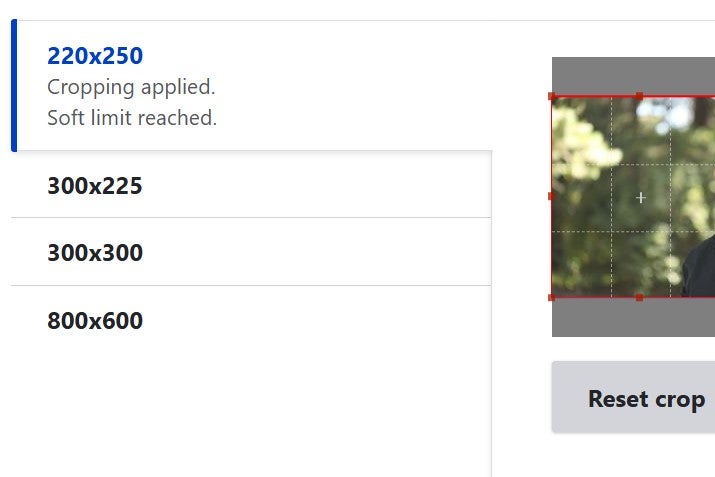
Please select a picture size then move the red frame on the picture to position it for the desired crop. Since different website use different sizes, it's recommended to check and adjust the crop for all sizes.
Need Help?
If you have questions or need assistance creating/updating your profile, please submit a UO Profile Support Request.
Thank you for helping us maintain a professional and consistent presence across the university. Your cooperation ensures that our directory reflects the high standards of the University of Oregon.