Perusall Basics - Start Here

Perusall Basics - Start Here

Perusall is a collaborative annotation tool that makes reading active, visible, and social. With Perusall, students engage with their readings, instructors, ideas, and each other in deeper, more meaningful ways. This page provides a roadmap to using Perusall in Canvas.

For information about collaborative annotation as a teaching practice, please see our Collaborative Annotation Tools - Hypothesis and Perusall document.

NOTE: Be aware that some students may have barriers or concerns that prevent them from using Perusall in your course. To ensure that all students have equitable access to learning, we invite you to consider and provide alternative ways for students to engage with your course content and meet the assignment objectives. For more information on using digital tools, see the External Vendor Digital Tools in Teaching resource.

If you'd like to consult with UO Online about how to use Perusall in your courses, please contact us.

If you have technical questions setting-up or using Perusall, please reach out to Perusall using their Contact Support form (link opens in a new window).

Perusall & PDF Documents

IMPORTANT!

PDFs are likely the most common document type you might use with Perusall. In order for PDFs to be used with Perusall, you must ensure that they contain "selectable text." This means that the PDFs are not images of text, but text that can be highlighted. If your document is a scanned PDF, it must be put through the Optical Character Recognition (OCR) process. This process ensures that the PDF has selectable text and will allow students to highlight document text in Perusall.

If you need assistance determining if your PDFs are images or contain selectable text, or with using OCR to convert your PDFs, please refer to the Creating Text Based PDFs for Hypothesis and Perusall How To document.
Accessing Perusall 1.3 in Canvas

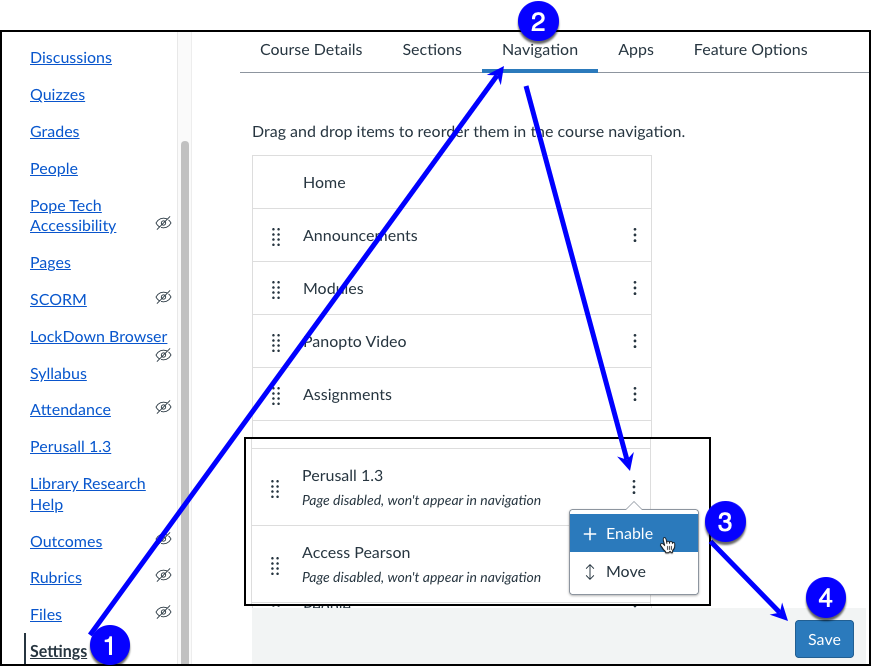
To use Perusall in your courses, you must first enable it on your Course Navigation Menu. If you don't see it on your Course Navigation Menu, follow these steps.

  1. In a Canvas course, select Settings from the Course Navigation Menu
  2. Select the Navigation Tab
  3. Scroll down to find Perusall 1.3 and select the [⋮] more options menu. Select +Enable.
  4. Be sure to Save your change before exiting Settings.

How to Enable Perusall 1.3 in Canvas Settings

Setting up a Perusall Assignment

When you're ready to set-up a Perusall Assignment, select Perusall 1.3 from the Course Navigation Menu.

The first time you use Perusall in a Course, you'll need to set the course up. Follow the steps outlined in Perusall's Getting Started for Instructors: Course Set-up documentation.

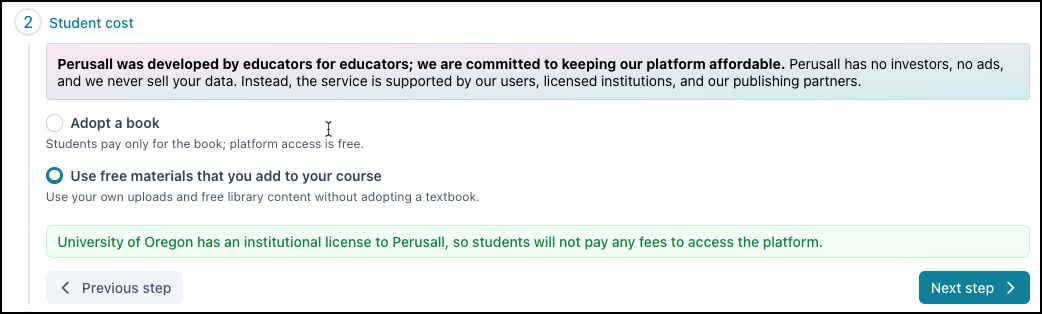
NOTE: In the set-up instructions Step 2 Student Cost, you will see a different screen in our Perusall instance. Because the University of Oregon has an institutional license to Perusall, you will not be asked to set a student cost to use the platform.

Perusall Student Cost UO View

Continue through the set-up instructions.

Course assignments created in Perusall will automatically be added to your Canvas course and Gradebook.